Configuration
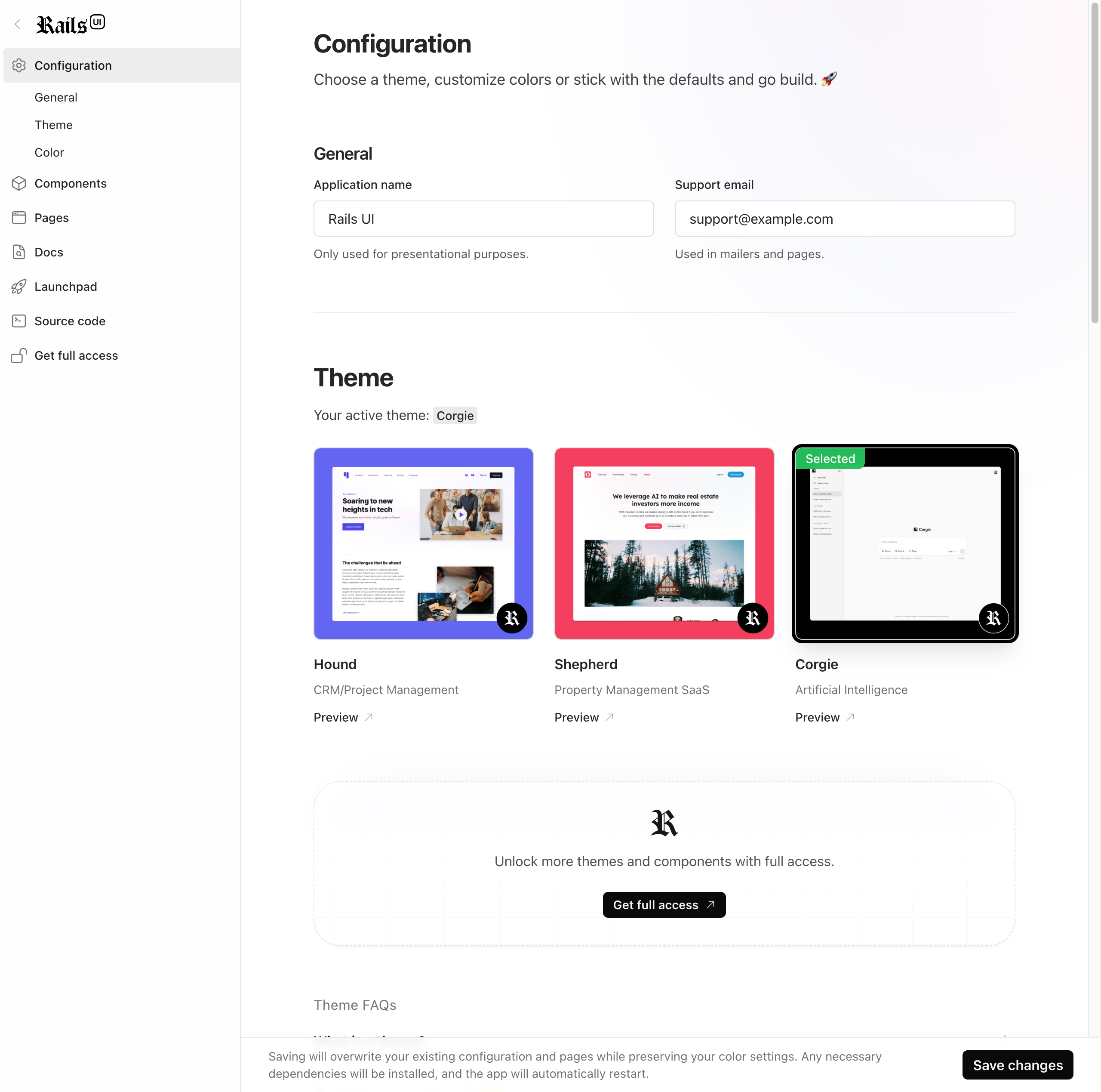
After installing Rails UI, you'll configure basic settings: app name, support email, and theme selection. Each theme includes pre-designed pages, mailers, layouts, and color schemes which are fully customizable.
The railsui.yml config file
When you install Rails UI, a railsui.yml file is added to your config directory. This file manages your configuration options and is automatically generated, but you can manually adjust it if needed.
General
General options let you customize your app's display name and support email. These appear in email templates, pages, and front-facing template areas like footers.
Access those in this manner:
Railsui.config.application_name
Railsui.config.support_email
Build Mode
Rails UI v3.3+ supports both nobuild (importmap) and build (JS bundler) modes. You can configure this in your config/railsui.yml file. Typically this is set once during installation of Rails UI however you can change it any time.
# config/railsui.yml
build_mode: nobuild  # or "build"
nobuild mode (default): Uses importmaps for JavaScript. No Node.js or build step required. Perfect for simple applications or when you want faster refresh times.
build mode: Uses a JavaScript bundler (esbuild, webpack, bun, or rollup). Required for TypeScript, advanced JS tooling, or complex dependencies.
You can switch between modes at any time by updating the build_mode setting and running rails railsui:update. See the Installation guide for migration instructions.
Select a theme
Rails UI components and views are theme-driven. Each theme includes a preview to showcase its design and layout.
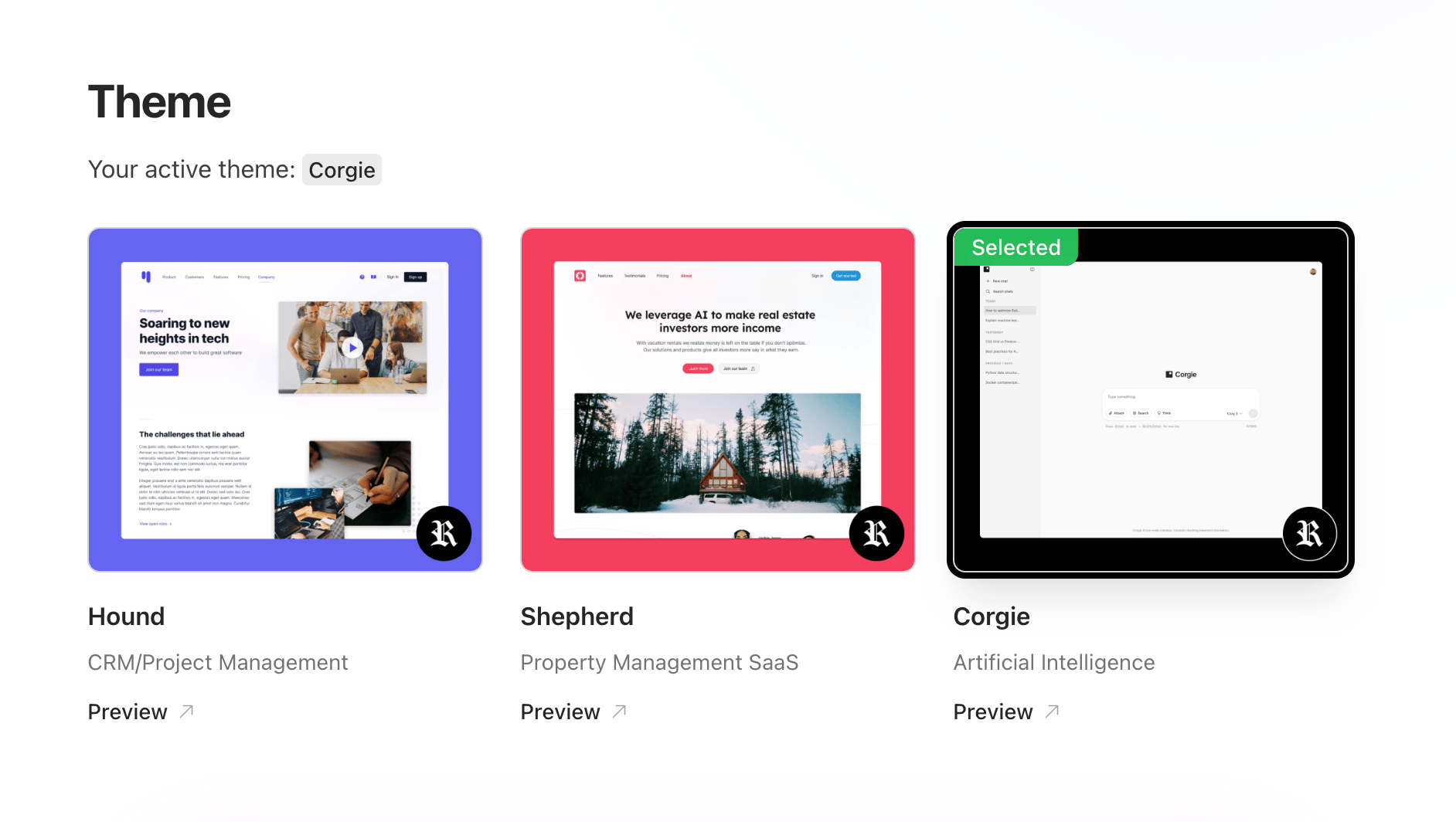
Every theme includes UI components, pre-designed views (optional), mailers, and custom color schemes. These are fully customizable since they're integrated directly into your app.
Themes are based on real-world use cases and niches, primarily from the SaaS space where Ruby on Rails excels.
We'll continuously add free and premium themes to expand Rails UI's library.
Changing themes
Changing themes is possible but requires careful consideration.
Rails UI replaces generated pages, partials (app/views/rui), and images (app/assets/images/railsui) with the new theme's files, including all files in app/assets/stylesheets/railsui/.
-
Tip: To preserve views in
app/views/rui or images in app/assets/images/railsui, copy them to a backup location before changing themes. Treat pages as read-only code snippets for best results.
Configuring colors
Each Rails UI theme typically includes two custom colors in addition to Tailwind CSS 4's color palette: primary and secondary. These colors are used throughout the theme to provide a consistent visual identity and you can update the theme.css file to customize them.
/* Example theme setup for Hound theme */
@theme {
  --font-sans: "Inter", ui-sans-serif, system-ui, sans-serif,
    "Apple Color Emoji", "Segoe UI Emoji", "Segoe UI Symbol", "Noto Color Emoji";

  --color-primary-50: oklch(0.962 0.0179 272.31); /* #eef2ff */
  --color-primary-100: oklch(0.93 0.0334 272.79); /* #e0e7ff */
  --color-primary-200: oklch(0.8699 0.0622 274.04); /* #c7d2fe */
  --color-primary-300: oklch(0.7853 0.1041 274.71); /* #a5b4fc */
  --color-primary-400: oklch(0.6801 0.1583 276.93); /* #818cf8 */
  --color-primary-500: oklch(0.5854 0.2041 277.12); /* #6366f1 */
  --color-primary-600: oklch(0.5106 0.2301 276.97); /* #4f46e5 */
  --color-primary-700: oklch(0.4568 0.2146 277.02); /* #4338ca */
  --color-primary-800: oklch(0.3984 0.1773 277.37); /* #3730a3 */
  --color-primary-900: oklch(0.3588 0.1354 278.7); /* #312e81 */
  --color-primary-950: oklch(0.2573 0.0861 281.29); /* #1e1b4b */

  --color-secondary-50: oklch(0.9842 0.0034 247.86); /* #f8fafc */
  --color-secondary-100: oklch(0.9683 0.0069 247.9); /* #f1f5f9 */
  --color-secondary-200: oklch(0.9288 0.0126 255.51); /* #e2e8f0 */
  --color-secondary-300: oklch(0.869 0.0198 252.89); /* #cbd5e1 */
  --color-secondary-400: oklch(0.7107 0.0351 256.79); /* #94a3b8 */
  --color-secondary-500: oklch(0.5544 0.0407 257.42); /* #64748b */
  --color-secondary-600: oklch(0.4455 0.0374 257.28); /* #475569 */
  --color-secondary-700: oklch(0.3717 0.0392 257.29); /* #334155 */
  --color-secondary-800: oklch(0.2795 0.0368 260.03); /* #1e293b */
  --color-secondary-900: oklch(0.2077 0.0398 265.75); /* #1e293b */
  --color-secondary-950: oklch(0.1288 0.0406 264.7); /* #020617 */

  --animate-toast-from-right: toast-from-right 0.5s
    cubic-bezier(0.68, -0.55, 0.27, 1.55);
  --animate-toast-from-left: toast-from-left 0.5s
    cubic-bezier(0.68, -0.55, 0.27, 1.55);

  @keyframes toast-from-right {
    0% {
      transform: translateX(50%);
      opacity: 0%;
    }

    100% {
      transform: translateX(0);
      opacity: 100%;
    }
  }

  @keyframes toast-from-left {
    0% {
      transform: translateX(-50%);
      opacity: 0%;
    }

    100% {
      transform: translateX(0);
      opacity: 100%;
    }
  }
}

@layer base {
  *,
  ::after,
  ::before,
  ::backdrop,
  ::file-selector-button {
    border-color: var(--color-gray-200, currentColor);
  }
}

/* Installed as a depenency when using the Hound theme */
@plugin "@tailwindcss/typography";

/* Keep: Include Rails UI content paths i.e. /railsui */
@config "../../stylesheets/railsui/tailwind.config.js";
Pages
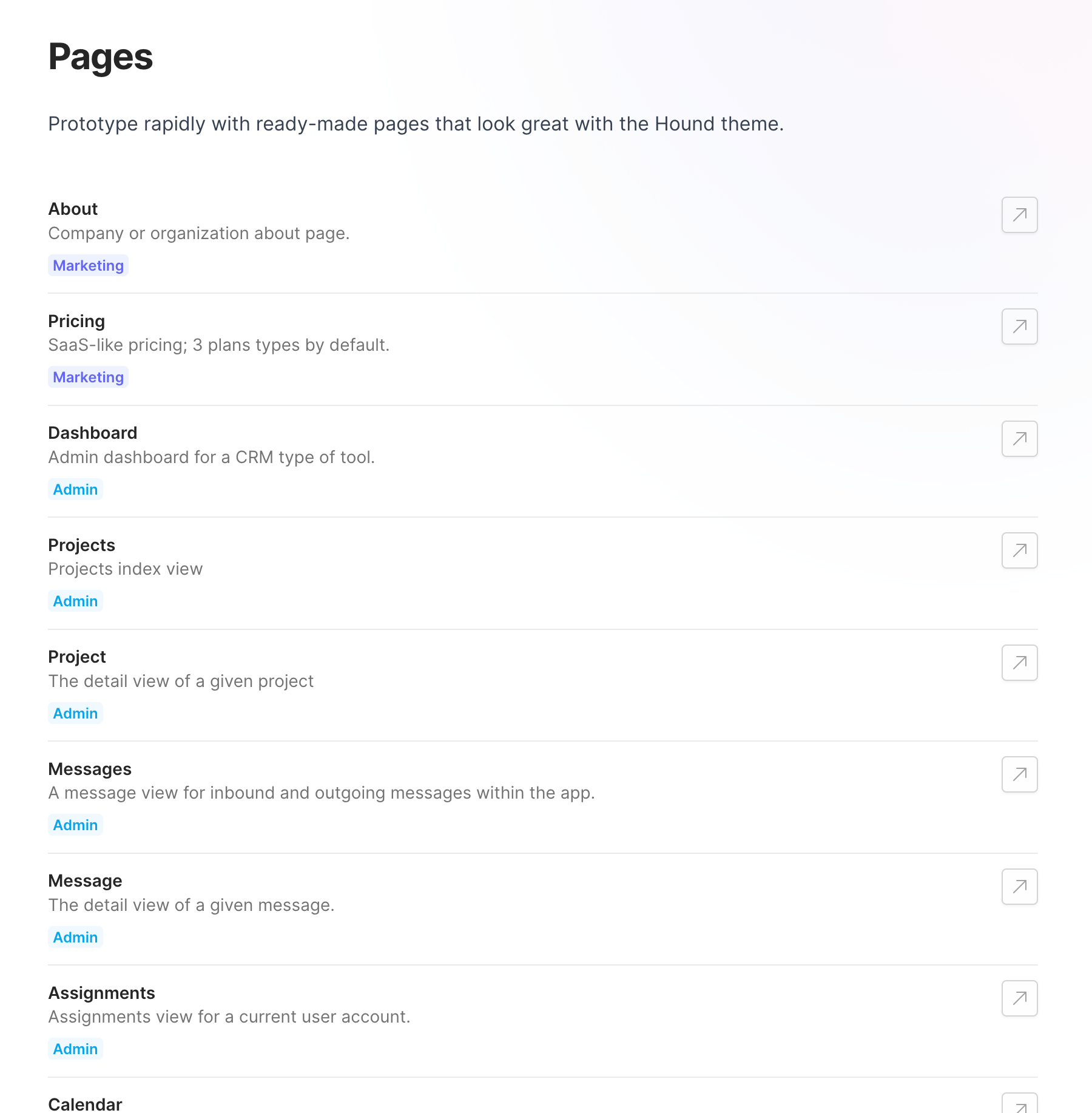
Each theme includes 20+ views (called pages), with more added regularly. A button links directly to each live page in your app.
Installing pages
When you install a theme, pages are automatically added to your project.
Customizing pages
Pages in app/views/rui/pages are customizable. To prevent overwrites, create new views and copy code from these templates.